


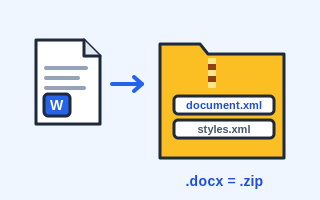
A Word file is a zip file
A .docx file is a package of parts in a zip. Rename a copy from .docx to .zip and you can open it and look inside: the main text of the document is in a file called document.xml.
Source: learn.microsoft.com
Run it. Get results.
No tool matches that. Try another word.
Mathematics
Mathematics
Utilities
Utilities
Image
Image
Language
Language
Networking
Networking
Finance
Finance
Cybersecurity
Cybersecurity
Text
Text
Date
Date
Measurement
Measurement
Audio
Audio
Health
Health
Nutrition
Nutrition
Time
Time
Weather
Weather
Document Processing
Document Processing
Productivity
Productivity
Career
Career
Business
Business
Video
Video
Education
Education
Statistics
Statistics
Chemistry
Chemistry
Physics
Physics
Construction
Construction
Electrical Engineering
Electrical Engineering
Programming
Programming
Graphic Design
Graphic Design
Computer Science
Computer Science
Database
Database
Music
Music
Digital Electronics
Digital Electronics
Electronics Engineering
Electronics Engineering
A free PDF to Word converter that turns a PDF into a Word document (.docx) you can edit. Choose Editable text to get the words back as paragraphs and headings, with bold and italic kept, or Exact look to put each page into Word as a picture that looks just like the PDF. It all happens in your browser: the PDF is never uploaded, so it's safe for contracts, CVs and private letters.
No. The PDF is read and converted in your browser, on your own computer. It is never sent to Toolulu or anyone else, which also makes it safe for private documents.
The words, in reading order, put back together into paragraphs; bigger text as headings (Heading 1 and 2, so Word's Navigation pane works); bold, italic and centred lines; and a new page where each PDF page began.
Pictures, tables, columns, page headers and footers, and the exact fonts: the text comes out in Calibri. Wide gaps become tabs. For a document where the look matters more than editing, choose Exact look.
A scanned page is a picture of text, not text. Exact look still puts it into Word as a picture; to edit the words, the page first needs text recognition (OCR).
Not while it's protected. Remove the password in the app that made the PDF, then try again.
Microsoft Word, Google Docs, LibreOffice, Apple Pages and other word processors that read .docx files.
A .docx file is a package of parts in a zip. Rename a copy from .docx to .zip and you can open it and look inside: the main text of the document is in a file called document.xml.
Source: learn.microsoft.com
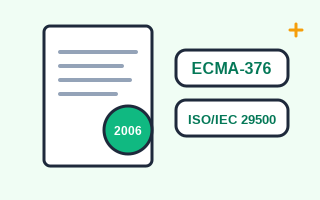
The format behind .docx, Office Open XML, is a published standard: ECMA-376, first edition December 2006, also numbered ISO/IEC 29500. Its fifth edition came out in December 2021.
Source: ecma-international.org
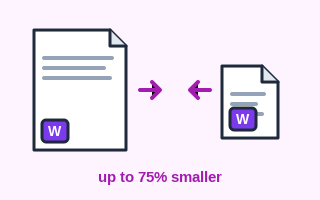
Word's .docx files are compressed automatically when they are saved. Microsoft says they can be up to 75 percent smaller in some cases, which makes them quicker to email and store.
Source: support.microsoft.com
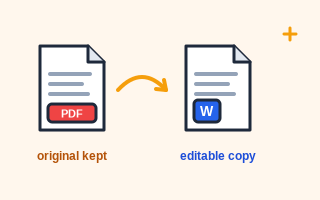
Microsoft Word can open a PDF itself: it makes a copy and converts it, and the original PDF stays as it was. Microsoft says it works best with files that are mostly text; things like tables with cell spacing, footnotes that span pages and PDF comments don't convert well.
Source: support.microsoft.com
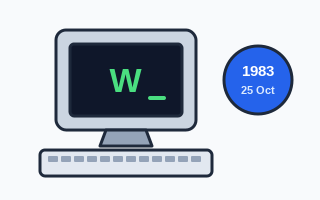
The very first version of Word, then called Multi-Tool Word, came out on 25 October 1983, for the Xenix and MS-DOS operating systems.
Source: theregister.com
Letters, reports, contracts and CVs come back as real paragraphs you can edit, with headings, bold and italic kept. Pictures and tables aren't copied, so it suits mostly-text PDFs best.
Choose Exact look when the layout matters more than editing: forms, brochures, scans. Each page goes into Word as a picture of the page, so nothing moves.
If Editable text finds no text, the PDF is a scan: pictures of pages. Use Exact look to keep it as it is, or run it through text recognition (OCR) first to get words you can edit.
Big text becomes Heading 1 and 2, so Word's Navigation pane (View › Navigation Pane) lists them. Check that each one really is a heading, and change the style where it isn't.
Tables come out as lines with tabs between the columns. Select those lines in Word and choose Insert › Table › Convert Text to Table to get a real table back.
The text comes out in Calibri. To use another font, press Ctrl+A (Cmd+A on a Mac) to select everything, then choose the font once.
A password-protected PDF can't be read here. Open it in the app that made it, remove the password or restrictions, save, and convert the new copy.
The converter makes a new Word file and never changes your PDF. Keep the PDF as the official copy: it is what people signed or sent.
Advertisements