Solve equations step by step: linear and quadratic (with the discriminant), higher degrees and systems; simplify, expand and factor expressions.
A simple online calculator: add, subtract, multiply, divide, percentages and brackets, with a history of your answers. Free, in your browser.
Derivatives (any order), indefinite and definite integrals, and limits, each checked numerically where it can be.
Solve equations and systems of equations, with the steps shown.
Add, subtract, multiply and divide fractions and mixed numbers, with the steps shown.
Graph functions and equations, and see their roots, intercepts and turning points.
Add and multiply matrices up to 6 × 6, and find the determinant, inverse, transpose, rank, row echelon form and eigenvalues, step by step.
Percentages of amounts, percentage increase and decrease, and what percent one number is of another.
Solve quadratic equations by the formula, with the roots and the steps shown.
Simplify ratios, solve proportions and scale amounts.
A free scientific calculator: sin, cos, tan and their inverses in degrees or radians, logarithms, powers, roots, factorials and constants.
Utilities
Utilities
Free QR codes for links, text, Wi-Fi, contacts, email, phone, SMS or a place on a map. Add your colours and logo, then download a PNG or SVG.
Read a QR code with your camera or from an image.
Pick a name at random from a list.
Pick random numbers in a range, with or without repeats.
PDF
PDF
Turn photos into one PDF: put pages in order, turn them, choose A4, Letter or the photo's shape. Free; your pictures never leave your computer.
Make a PDF smaller to email or upload: photos and scans shrink, text stays sharp. Free, and the file never leaves your computer.
Add text, images and signatures to a PDF, and fill in its forms.
Combine several PDF files into one, in the order you choose.
Split a PDF into separate files, or take out the pages you need.
Turn each page of a PDF into a JPG image.
Turn a PDF into a Word file you can edit: paragraphs, headings, bold and italic kept. Free, and your PDF never leaves your computer.
Turn a Word document into a PDF that looks the same everywhere.
Image
Image
Turn iPhone HEIC photos into JPG images that open anywhere.
Remove the background from a photo and keep the subject, for product photos and profile pictures.
Make JPG, PNG and WebP images smaller without losing visible quality.
Crop images freely or to a set aspect ratio.
Resize images to the width and height you need, or by percentage.
Turn JPG images into PNG.
Crop, rotate, adjust and add filters to photos in your browser.
Make passport and ID photos in the right size for your country, ready to print.
Turn PNG images into JPG.
Turn WebP images into JPG.
Language
Language
Check a text for grammar, spelling and punctuation mistakes.
Translate text between dozens of languages, from Filipino, Cebuano, Ilocano, Waray and Bikol to Latin. Up to 2,000 characters at a time.
Networking
Networking
See where a domain points: its DNS A records, free and instantly.
Measure your internet connection's download and upload speed and its ping.
Look up any IP address: its country, version and reverse DNS name.
Work out an IPv4 network's range, mask, broadcast and number of hosts.
Look up a domain's registrar, registration and expiry dates, or an IP address's owner and network.
Finance
Finance
How savings grow with compound interest and regular deposits.
Convert between 30 major currencies at today's European Central Bank reference rates.
The sale price and the amount saved from a price and a discount.
The return on an investment, in total and per year.
The monthly payment, total interest and payment schedule of a loan.
The monthly payment on a home loan from its price, down payment, rate and term.
Convert pay between hourly, daily, monthly and yearly.
Cybersecurity
Cybersecurity
Generate strong random passwords in your browser, from its secure random numbers.
Check a website's SSL/TLS certificate: who issued it, when it expires, its names, and the TLS version.
Text
Text
Count characters with and without spaces, for posts, ads and forms with limits.
Count the words, sentences and paragraphs in a text, with its reading time.
Date
Date
Your exact age in years, months and days from your birth date.
The time between two dates, or a date a number of days, weeks or months away.
Measurement
Measurement
Convert length, weight, temperature, volume, area, speed, data size and more, in your browser.
Audio
Audio
Take the audio out of a video as an MP3 file.
Turn speech into text as you talk.
Have a text read aloud in a natural voice, and choose the language and speed.
Health
Health
Body mass index from height and weight, in metric or imperial units.
Nutrition
Nutrition
How many calories you need a day to lose, keep or gain weight.
Time
Time
A stopwatch with lap times.
A countdown timer with an alarm, for cooking, study and workouts.
Convert a time between cities and time zones.
The time now in cities around the world.
Weather
Weather
Check the weather in any city, hour by hour, for today and the next 9 days: temperature, rain and the sky, from free national weather services.
Document Processing
Document Processing
Turn an Excel spreadsheet into a PDF.
Copy the text out of a photo, screenshot or scanned page.
Take the tables out of a PDF into an Excel spreadsheet.
Turn a PowerPoint presentation into a PDF.
Productivity
Productivity
A simple notepad that keeps your notes in your browser.
Work in focused 25-minute sessions with short breaks in between.
Measure your typing speed in words per minute, and your accuracy.
Career
Career
Write a resume from a clean template and download it as a PDF.
Business
Business
Make barcodes such as EAN-13, UPC and Code 128, and download them.
Make a professional invoice and download it as a PDF.
Video
Video
Make video files smaller to share and upload.
Education
Education
Your grade point average from your grades and credits.
Statistics
Statistics
The probability of single, combined and repeated events.
The standard deviation, variance and mean of a data set, with the steps shown.
Chemistry
Chemistry
Balance chemical equations, with the atoms counted on each side.
The molar mass of a compound from its chemical formula.
An interactive periodic table of all 118 elements: atomic weight, electron configuration, electronegativity and more, plus a molar mass calculator.
Physics
Physics
Solve common physics equations for motion, force, energy and electricity.
Construction
Construction
The concrete, blocks, bricks and other materials a building job needs.
Electrical Engineering
Electrical Engineering
Voltage, current, resistance and power: enter any two to get the others.
Programming
Programming
Decode Base64 back to text (UTF-8), in your browser.
Encode text as Base64 (UTF-8), in your browser.
Format, validate and minify JSON.
Test regular expressions against text, with the matches highlighted.
Convert Unix timestamps to dates and back.
Make random UUIDs (version 4), one or many at a time.
Graphic Design
Graphic Design
Pick a color and get its HEX, RGB and HSL values.
Convert colors between RGB and HEX.
Computer Science
Computer Science
Convert numbers between binary, octal, decimal, hexadecimal and any base from 2 to 36, with fractions, Roman numerals and the number in words.
Database
Database
Format SQL queries so they're easy to read.
Music
Music
Tune your guitar with your device's microphone.
A metronome with tempo, time signature and accents.
Play the piano with your mouse, touch screen or keyboard.
Digital Electronics
Digital Electronics
Simplify Boolean expressions step by step, naming each law (De Morgan, absorption…), with the truth table, minimal SOP and POS, or check two are equal.
Simplify Boolean functions with a Karnaugh map: click cells or type minterms and don't-cares, and get the minimal SOP and POS for 2 to 6 variables.
Electronics Engineering
Electronics Engineering
Build simple electronic circuits on screen and see the voltages and currents.
About the PDF Compressor
A free PDF compressor that makes PDFs smaller so they are easier to email and upload. It shrinks the pictures inside, photos and scanned pages, which make up most of a large PDF, and tidies the file's structure. Text, fonts and drawings are left exactly as they are, so text stays sharp and searchable. It all happens in your browser: the file is never uploaded.
How to use it
Drop a PDF on the box, or choose one (up to 150 MB).
Pick how much smaller: Light, Recommended or Strong. It starts at once, and again when you change the level.
See the size before and after, download the smaller PDF, and open it to check it before you send it.
Questions
Is my PDF uploaded anywhere?
No. The PDF is read and made smaller in your browser, on your own computer. It is never sent to Toolulu or anyone else, which also makes it safe for private documents.
Why did my PDF barely get smaller?
If the file is mostly text and drawings, there is little to compress: they take very little room already. The biggest savings come from PDFs full of scans or photos. Pictures in formats this tool leaves as they are (JPEG 2000, CMYK, black-and-white fax scans) also stay the same size.
Will compression change my text?
No. Real text in a PDF is not touched, so it stays sharp and you can still search and copy it. Text that is part of a scanned picture can look softer at the Strong level.
Which level should I choose?
Recommended suits most files: clear on screen and fine for most printing. Use Light when the PDF will be printed, and Strong when an email or upload form has a size limit.
Can it compress a password-protected PDF?
Not while it is protected. Remove the password or restrictions in the app that made the PDF, then try again.
Did you know?
It started as Project Camelot
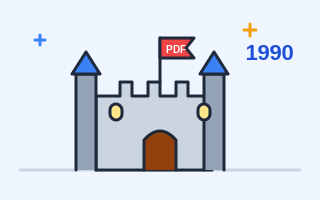
PDF began with a 1990 paper by Adobe co-founder John Warnock, written for a project code-named Camelot. The aim: send a document to any computer, whether a Mac, Windows, UNIX or DOS, and have it look exactly the same. Acrobat 1.0, the first program to make and read PDFs, launched on 15 June 1993.
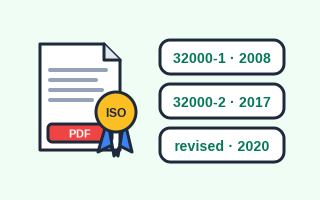
With PDF 1.7, Adobe handed the PDF specification over to ISO, and it became the international standard ISO 32000-1 in 2008. PDF 2.0 followed as ISO 32000-2 in July 2017, with a revised edition in 2020.
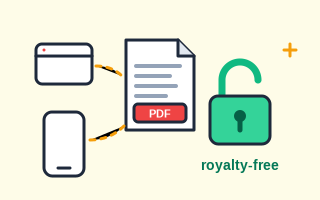
Adobe gives every person and organisation in the world a royalty-free licence to its patents on PDF 1.7 (ISO 32000-1): anyone may make, sell and share software that creates or reads PDFs without paying Adobe. That helps explain why so many apps can open and create them.
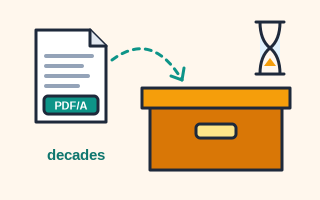
PDF/A is a family of PDF standards (ISO 19005) for keeping documents readable for the long term. The first, PDF/A-1, was published in 2005 and is based on PDF 1.4. It is meant for archives, so that documents can still be opened and read decades from now.
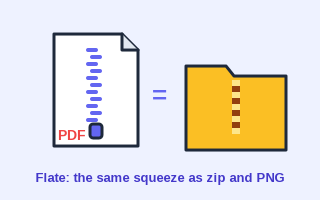
Much of what is inside a PDF is packed with Flate: the same deflate compression (zlib) that zip files and PNG pictures use. PDFs have used it since version 1.2.
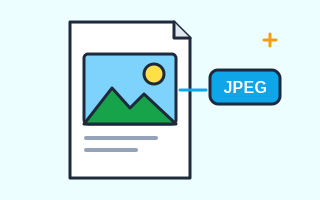
PDF stores photos with DCT compression, the method behind JPEG pictures, so a photo inside a PDF is in effect a JPEG. This compressor saves the pictures it shrinks the same way, so any PDF reader can open the result.
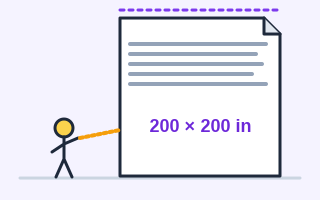
Very big. Adobe's PDF 1.7 reference lists the limits of its own software: up to 8,388,607 objects in one file, and pages from 3 by 3 units up to 14,400 by 14,400. At the standard unit of 1/72 inch that is 200 by 200 inches, about 5 metres a side, and since PDF 1.6 a page can use a bigger unit and be larger still.
A plain photo of a page keeps the table, the shadows and every colour around it. A document scanner, such as Scan Documents in the iPhone's Notes app or the Scan button in Google Drive on Android, crops to the page, straightens it and cleans it up, so the PDF is smaller and easier to read.
Scan at 150 to 200 DPI
For documents read on screen, 150 to 200 dots per inch is plenty; keep 300 for printing or when the text will be recognised (OCR). A 300 DPI scan has four times the pixels of a 150 DPI one, so the file is several times bigger for detail nobody sees.
Black and white for text, colour only when it matters
A colour scan stores three values for every pixel, greyscale one, and black and white just one bit. Scan letters, forms and contracts in black and white, use greyscale when there are pencil notes, stamps or photos, and keep colour for pages where colour carries meaning.
Save as PDF instead of printing a picture of it
Use Save as PDF or Export to PDF in your word processor or browser. Text stays real text, tiny and searchable. A screenshot, or a scan of a printout, turns every page into a picture, which is far bigger.
In Word, choose Minimum size
When you save a document as PDF in Word or PowerPoint on Windows, the Save As window offers Optimize for: Standard or Minimum size (publishing online). Minimum size makes the pictures smaller as it saves. Use Standard for a copy that will be printed.
Compress the pictures inside your document
A phone photo has 12 million pixels or more and keeps all of them even when it is shown small. In Word or PowerPoint, select a picture, choose Picture Format, Compress Pictures, then pick Web or E-mail resolution and Delete cropped areas of pictures. Every PDF you make from the document is smaller after that.
Cropping hides, it doesn't delete
When you crop a photo in a document, the cut-off part is usually still stored, out of sight, and goes into the PDF with it. Delete the cropped areas (Compress Pictures, above) or crop the photo in a photo app before you put it in.
Send only the pages they need
A form often needs one signed page, not the whole 40-page contract. Save or print just those pages as a new PDF, and the file is a fraction of the size.
Try Strong for size limits, and keep the original
When an email or upload form rejects a file as too big, the Strong level makes the pictures smallest. Open the result and zoom into the smallest print to check it is still easy to read, and keep the full-size PDF for printing and your records: lost detail can't be put back.
Zipping a PDF barely helps
The text and pictures inside a PDF are already compressed, much as in a zip file, so zipping a PDF usually saves very little. Making the pictures smaller saves far more; if the file is still too big, send it as a share link from your cloud storage instead.